If you have ever used file search, you know the drill: type a name, wait, and hope. On a good day it works. After a data loss – when you are searching through thousands of recovered files – it fails spectacularly. The difference between traditional search and AI-powered search is not a minor upgrade; it is a different way of finding what you need.
This comparison breaks down how the two approaches work, where each shines, and why smart filtering has become the standard in data recovery.
How Traditional File Search Works
Traditional file search matches what you type against filenames and paths. It is simple and predictable, but it has hard limits:
- It needs the exact or near-exact name. Misspell a filename or forget part of it, and the search fails.
- It ignores context. A file named “IMG_4521.JPG” tells you nothing about when it was taken or what it contains.
- It cannot filter by meaning. Searching for “contract” only finds files with that word in the name – not documents that are contracts.
- It produces flat lists. Results are a wall of names with no way to narrow by type, date, or size.
For a normal folder, this is tolerable. For a recovery result list of tens of thousands of files, it is nearly useless.
Why Traditional Search Fails After Data Loss
Data loss changes the rules. After a recovery scan, you are often searching for files you cannot name – because you never named them, because the names are camera-generated strings like “DSC_0098”, or because the file system lost the original metadata. Traditional search demands a name you do not have. Even when you do remember part of a name, the scan results are so large that a flat list of matches still requires manual sorting by hand. Traditional search was built for tidy folders, not for the messy reality of recovery.
How AI-Powered Search Works
AI-powered search in modern recovery tools takes a fundamentally different approach. Instead of matching strings, it analyzes the files themselves – their types, headers, metadata, timestamps, and content clues – and lets you search and filter with far more flexible criteria.
The practical differences:
- Search by what you remember, not by exact names. A partial word, an extension, or even a file type is enough.
- Filter by type, time, and size. Cut a thousand files down to the handful you need in one click.
- Results update as you type. You see matches appear instantly and can adjust your query on the fly.
- AI-assisted classification. The engine understands that an MP4 is video, a HEIC is a photo, and a file from last Tuesday is “recent.”
Side-by-Side Comparison
| Capability | Traditional Search | AI Search & Filter |
|—|—|—|
| Exact filename match | Yes | Yes |
| Partial / fuzzy match | Limited | Yes |
| Search by file type | No | Yes |
| Search by time range | No | Yes |
| Search by size | No | Yes |
| Results while typing | No | Yes |
| Understands file content clues | No | Yes |
| Usable on 10,000+ results | Poor | Excellent |
Why Smart Filtering Wins in Data Recovery
The recovery scenario is where the difference becomes dramatic. After a scan, you are not searching a tidy folder – you are facing every recoverable file the device has ever held, sorted into a massive list.
Here is what smart filtering does that traditional search cannot:
- It narrows by what you know. You do not know the filename of last week’s video, but you know it was a video, from last week, and large. Three filter clicks find it.
- It removes the noise first. Filtering by type immediately hides the system files, caches, and unrelated data that clutter results.
- It prevents wrong-file recovery. By previewing and filtering before recovering, you avoid grabbing a decade-old version of a document you wanted from last month.
How Recoverit Implements AI Search
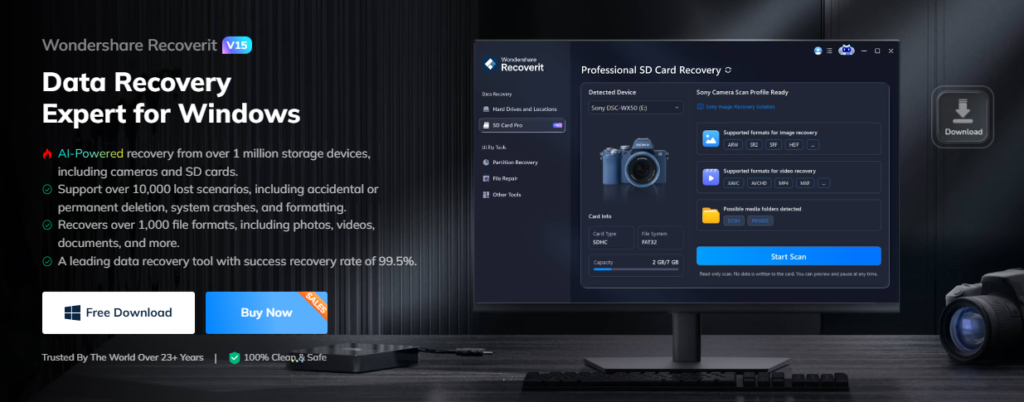
Wondershare Recoverit puts AI search and smart filters directly into the recovery workflow. After a scan, the search box and filter panel work together to narrow results instantly.
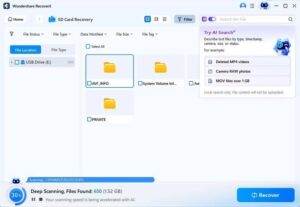
- Type a name, extension, or keyword into the search box for live narrowing.
- Apply the File Type, Time, and File Size filters to strip out everything irrelevant.
- Preview the shortlist and recover exactly what you need.
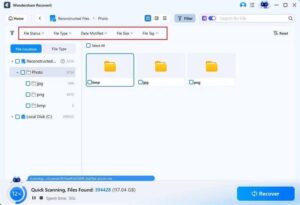
This combination – search plus filter – is the practical core of why smart filtering wins. On the Windows version and the Mac version of Recoverit, the experience is the same, so the skills transfer across platforms.
When Traditional Search Is Still Fine
To be fair, traditional search is not always the wrong tool. For a small, well-organized folder where you know the exact filename, it is fast and free. If you are looking for one file in a folder of twenty, plain search works.
The problem is that data recovery is never that simple. Recovery results are large, messy, and full of files you did not expect to see. That is the situation where traditional search breaks and AI search earns its place.
A Practical Test of Both
Try this: recover a drive and search it the traditional way – type a filename, scroll the matches, repeat. Then run the same recovery with AI search: filter by type, set the time range, add the size filter, and watch the list collapse. Most people who try both do not go back to scrolling. The reason is simple: the first method makes you supply information you do not have, while the second method uses the information you do have – what the file is, when it was created, how big it is.
Conclusion
Traditional file search asks you to know what you are looking for and type it perfectly. AI-powered search and smart filtering ask what you remember – a type, a time, a size, a fragment of a name – and find the rest. In data recovery, where thousands of files compete for attention, that difference decides whether you find your data or drown in results. With Wondershare Recoverit, the smart search and filter tools are built in, turning the most overwhelming recovery scan into a quick, targeted recovery.