Understanding and complete study on firestick remote not working Issues
When users search for solutions to firestick remote not working, they often face connectivity problems, pairing failures, or battery-related issues. A Firestick remote is designed to deliver a smooth streaming experience, but even small technical glitches can interrupt functionality. To ensure a seamless experience, it is important to understand the most common causes behind remote failure. Some frequent triggers include Bluetooth interference, battery drainage, software bugs, or incorrect device pairing. Recognizing these issues early helps users apply accurate and effective solutions.
Common Reasons Behind firestick remote not working
Battery Problems and Power-Related Issues
One of the most common reasons for remote failure is weak or incorrectly inserted batteries. The Firestick remote depends on stable battery power to maintain a strong Bluetooth connection. Users should check battery placement and always use fresh, high-quality batteries to avoid interruptions. Additionally, accumulated dirt inside the battery compartment may affect conductivity. Keeping the compartment clean helps maintain responsive performance.
Also, explore Leavewb: Understanding the Digital Leave Management Platform
Connectivity and Pairing Errors
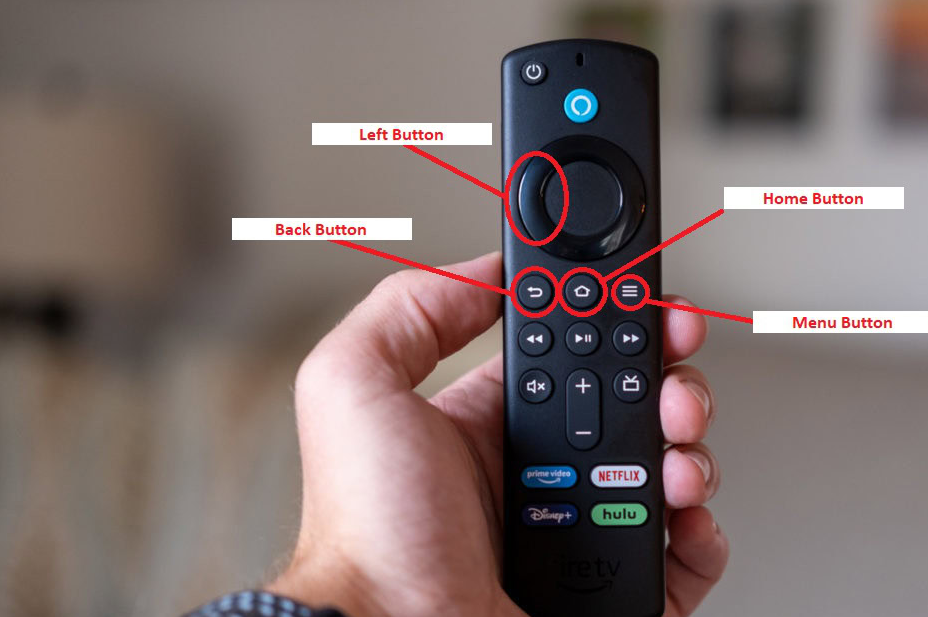
Another major cause is improper pairing. Since the Firestick remote uses Bluetooth instead of infrared, it must be properly synchronized with the Firestick device. Device pairing problems often occur after system updates or accidental unpairing. Ensuring the remote is within range, reducing interference from other wireless devices, and re-pairing the remote can quickly resolve the issue. Users may need to hold the Home button for up to 10 seconds to re-establish the connection.
How to Fix firestick remote not working
Step 1 Check and Replace the Batteries
Replacing the batteries is the first and easiest step. Using high-quality batteries ensures reliable operation. Always insert the batteries correctly and avoid mixing old and new ones. If the remote still does not respond, try cleaning the battery connectors with a dry cloth.
Step 2 Re-Pair the Remote
If the remote becomes unresponsive even after replacing the batteries, re-pairing is often necessary. Hold the Home button for several seconds until the pairing pop-up appears on your screen. Move closer to the Firestick device and ensure that no objects block the signal. Reducing interference from wireless devices nearby can also help stabilize the connection.
Step 3 Restart the Firestick Device
A simple restart can resolve many software-related issues. Unplug the Firestick from the TV and power source, wait for at least 20 seconds, and plug it back in. System glitches or minor firmware errors often clear after a restart, restoring full remote functionality.
Additional Troubleshooting for Better Results
Check for Obstructions and Distance
Although the Firestick remote uses Bluetooth, being too far from the device or having obstacles between the remote and Firestick can cause malfunctions. Maintain a close distance and remove unnecessary objects around your TV setup.
Install Software Updates
Outdated software can result in remote connectivity issues. Regular updates improve system performance and fix known bugs. Navigate to the Settings menu, select My Fire TV, and check for available updates.
Use the Fire TV App as an Alternative
If the physical remote still does not work, the Fire TV mobile app can serve as a temporary solution. It works over Wi-Fi and offers full navigation capability, helping users maintain access to their streaming content while troubleshooting the physical remote.
FAQs About firestick remote not working
1.Why is my Firestick remote not responding at all?
This can happen due to battery failure, Bluetooth interference, or pairing issues. Try replacing the batteries and re-pairing the remote.
2.Can Wi-Fi issues cause remote failure?
Yes. Since the Fire TV app relies on Wi-Fi, unstable internet can affect app-based remote control, but Bluetooth-based remotes usually remain unaffected.
3.How do I reset my Firestick remote?
Hold the Back button, Menu button, and Left navigation button together for a few seconds, then re-pair the remote by pressing the Home button.
4.Can outdated software cause remote issues?
Yes. Outdated firmware can lead to connectivity problems. Updating the Firestick software can help resolve these issues.
5.What should I do if none of the solutions work?
If all troubleshooting steps fail, consider replacing the remote. Hardware damage or factory defects may cause permanent failure.
Conclusion
Fixing firestick remote not working issues becomes simple when users understand the common causes and apply the appropriate troubleshooting steps. By checking batteries, re-pairing the remote, restarting the device, and ensuring proper connectivity, most problems can be resolved quickly. Using alternatives like the Fire TV app and keeping software updated further enhances performance. With the right approach, users can restore full functionality and continue enjoying a smooth and uninterrupted streaming experience.