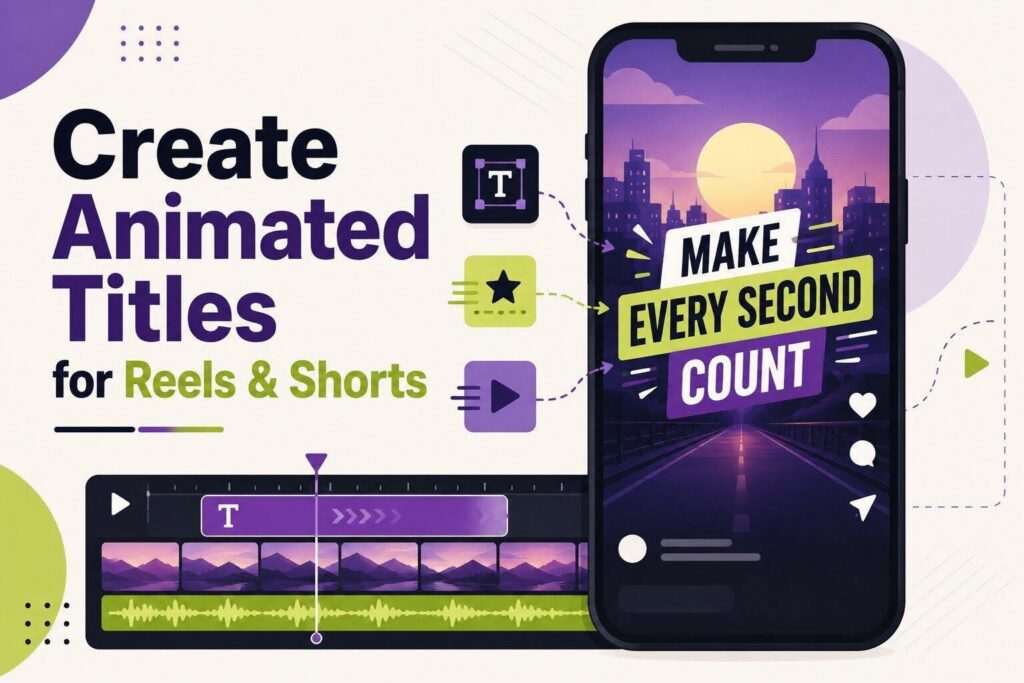
A vertical frame gives you far less room than a widescreen one, and much of what you do have is spoken for. The subject sits in the middle, captions run along the bottom, and the app itself covers the edges with buttons and usernames.
Add a short runtime on top of that, and every title has to earn its place. A sentence that works across a widescreen frame simply will not fit here. This guide covers how to create animated text that suits a vertical video without hiding the subject. Every step runs in Wondershare Filmora on the desktop.
Part 1. Decide Which Messages Need On-Screen Text
The first decision is what deserves a text animation at all. A 30-second clip has room for very few, so putting every spoken line on screen simply buries the ones that matter. Four messages usually justify it:
| Message | Why It Earns a Title |
| The Opening Hook | Tells a scrolling viewer what the video is about before they decide to leave |
| Supporting Keywords | Reinforces a term or a number that is easy to miss when spoken once |
| Speaker Label | Names who is talking when that identity affects how the point is taken |
| Final Call to Action | Says what to do next, which viewers rarely act on from audio alone |
Everything outside those 4 is usually better left to the captions. Adding it as an animated title just gives the viewer two things to read at once. Before starting off with the right video editor, find out more about the Filmora video editor for Mac.
Part 2. Create the Vertical Project in Filmora
Setting the shape of the project first saves a lot of repositioning later. On Filmora’s start screen, choose the 9:16 aspect ratio before creating the project, then open it and drag your footage onto the timeline.
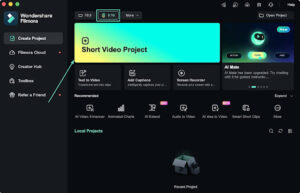
The preview window switches to a tall frame straight away, which matters more than it sounds. Judging where a title sits is guesswork in a wide preview, and text that looked balanced there often lands badly once the video is cropped. Building vertically from the start means what you see is what viewers get.
Note: If the footage was shot horizontally, crop or reframe it before adding any text. Repositioning the picture afterward moves everything out of place.
Part 3. Add and Position the Main Title
With the vertical frame in place, the opening title can go on. These 3 steps cover adding it, styling it, and putting it somewhere safe. If you are unaware of how to import the video files, learn more about it in this Filmora Mac importing guide.
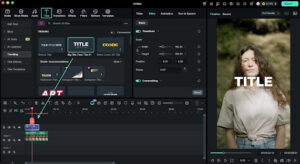
Step 1. Add a Title Built for Vertical Video
Open the “Titles” tab and look for the vertical templates. These are built around the 9:16 frame and the areas social apps cover with their own buttons. Drag one onto a track above your footage.
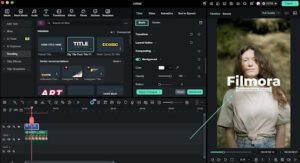
Step 2. Cut the Wording Down and Style It
Double-click the title and shorten the text until only the essential words remain. The “Basic” tab holds the font, size, alignment, and color, along with borders and shadows. A solid or slightly transparent panel behind the words works better than a heavy shadow.
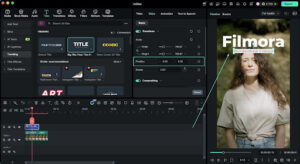
Step 3. Position It Away from the Busy Areas
Drag the title in the preview window or type exact coordinates into the “X” and “Y” boxes beside the “Position” setting. Keep it clear of faces, products, the caption strip along the bottom, and the top-right corner where notifications tend to appear.
Note: Installing a new font while Filmora is open will not show it in the list. Close the program and start it again for the font to appear.
Part 4. Apply an Animation for the Opening Hook
With the placement settled, the title needs movement that suits a viewer deciding whether to keep watching. Two things matter here, and neither takes long to create animated text.
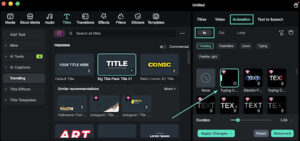
Choosing the In Animation
Open the “Animation” section in the properties panel and pick an “In” preset. Short vertical videos reward something quick and simple, since a slow entrance wastes seconds you do not have. A fade or a small slide reads as confident, while heavy movement competes with whatever is happening in the shot.
Timing It to the Hook
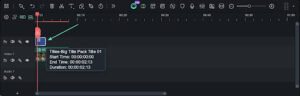
Position the title so it finishes arriving as the first interesting moment lands. Text that is still moving when the action starts splits the viewer’s attention between the two. Drag either edge of the title on the timeline to control how long it stays.
Note: Loop animations keep moving the whole time a title is on screen. Use one only where the movement has a reason, such as a call to action that has to hold attention for several seconds.
Part 5. Add Supporting Text Without Cluttering the Screen
Anything after the opening title is support, and it should look like it. Any animated text maker makes it easy to add more than a short video can carry, so four habits keep the extra text in check:
- Make it Visibly Smaller: Supporting labels should sit clearly below the main title in size, so the hierarchy is obvious at a glance.
- Highlight Single Words: A number or a key term on its own reads faster than a full phrase repeating what was just said.
- Show One at a Time: Two animated elements moving together will always compete, so let one finish before the next arrives.
- Reuse the Same Style: Right-click a finished title in the library and add it to “Favorites,” then apply the same one for every label.
Consistency does more for a short video than variety. Matching labels look deliberate, while 4 different styles look like four separate decisions.
Part 6. Preview the Complete Vertical Video
Vertical work is judged on a phone, so the final check should get as close to that as possible. Play the whole clip at full size and work through five points:
| What to Check | What to Look For |
| Timing | Text arriving late, or leaving before it can be read |
| Placement | Words landing on a face, or drifting into the caption area |
| Contrast | Light text against a background that brightens partway through |
| Motion speed | Animations slow enough to eat into a short runtime |
| Competing elements | Two titles moving at once, or text fighting the captions |
It also helps to export a test file and watch it on your phone before publishing. Any text animation maker shows a cleaner picture on a monitor than the platform eventually will.
Conclusion
Vertical titles come down to three decisions rather than a long list of settings. Keep the wording short enough to read in a moment and place it where nothing important is hidden. Let the movement finish quickly so the words can be read. Filmora handles the rest through its vertical templates and preset text animations, which is usually a short social video need.