There are few more pop-ups are as dreadful as the one that reads: “This card needs to be formatted.” It usually appears right after you plugged in an SD card full of photos, videos, or work files. And while your instinct might be to click “format” and hope for the best, doing so can make the situation much worse – because formatting overwrites the card’s file system and can destroy the very data you are trying to save.
The smarter path is to recover a corrupted SD card without formatting. In most cases, the files are still on the card, and they can be brought back with the right approach.
Why You Should Never Format a Corrupted SD Card
When an SD card becomes corrupted, its file system – the index that tells your computer where every file lives – gets damaged. Your files are still physically stored on the card; the computer just cannot find them. Formatting replaces that broken index with a brand-new, empty one. Suddenly, the card “works” again, but the old files become much harder to recover because the new file system can overwrite them.
The golden rule: do not format a card that contains data you want back. Remove it, stop using it, and recover first.
It is worth understanding the warning itself. When Windows or your camera says the card “needs to be formatted,” it is not diagnosing the problem – it is offering a solution that happens to destroy your data. The message appears for any number of file-system issues, most of which are recoverable. Treat “format” as the last resort, never the first response.
Quick Checks Before Recovery
Before running any recovery software, rule out the simple stuff:
- Reinsert the card. Eject and reconnect it; sometimes a bad contact is the real problem.
- Try another card reader or a different USB port. Faulty readers are a common cause of false “corrupted” warnings.
- Check the write-protect switch. A locked card can trigger read errors.
- On Windows, run a read-only check. A scan of the card (without fixing) can confirm whether the file system is damaged.
If the card is still unreadable after these checks, move on to recovery software – just make sure it works in read-only mode.
It is also worth confirming what “corrupted” means on your specific device. A card that fails in one camera may read fine in another, because cameras and card readers handle file-system quirks differently. Testing the card across devices is a legitimate diagnostic step, not a risk – as long as you never choose to format it in the process.
Recover Files from a Corrupted SD Card with Recoverit (3 Steps)
Wondershare Recoverit is a data recovery tool designed to scan corrupted storage in read-only mode – it never writes to the card, so it cannot make corruption worse. It also handles 2,000+ storage devices, so whether your card came from a camera, drone, or card reader, it is covered. The SD card recovery tool is the module to pick when the card itself is the problem – it targets exactly the corrupted, formatted, and unreadable-card scenarios this guide covers.
Step 1 Connect the Card and Select the SD Card Recovery Mode
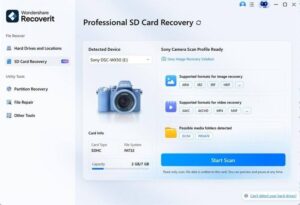
Launch Recoverit and choose the **SD Card Recovery** tab. Connect your corrupted card through a card reader. Even if Windows or macOS warns that the card is unreadable, Recoverit can still detect the device at the hardware level with its AI-boosted device recognition.
Step 2 Scan the Card
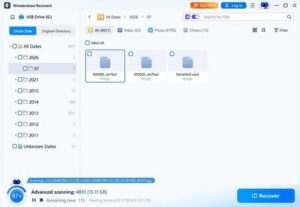
Select the card and click **Scan**. Recoverit runs an AI-accelerated scan that rebuilds device-specific data patterns, working around the damaged file system to locate your files. Depending on the card’s size, this can take a few minutes – you can pause or stop at any time if you spot your files early.
Step 3 Preview and Recover
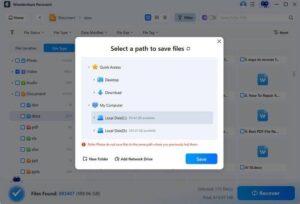
When the scan finishes, preview the results – photos, videos, audio, and documents are all supported. Select what you need and click **Recover**, then choose a location on a healthy drive. Never save the recovered files back onto the corrupted card.
How to Spot the Scan Mode You Need
Most recovery tools offer two scan levels, and choosing the right one saves time. A quick scan looks at the file system’s recent entries – perfect for a card that was just unplugged mid-transfer. A deep scan reads the raw sectors and rebuilds files from scratch, which is what a corrupted card usually needs. If the quick scan finds nothing or only partial files, run the deep scan before giving up; it takes longer but routinely finds what the quick pass misses.
Fix the Corrupted Card (Optional, After Recovery)
Once your files are safely recovered, you can deal with the card itself. If the corruption was file-system damage, formatting it now – after the data is safe – gives you a clean, working card. If the card shows repeated errors, replace it; continuing to use a failing card risks losing new data.
When you do reformat, prefer your camera’s own format function. Cameras build file systems that match their own writing patterns, which reduces the chance of the corruption returning. For cards used across computers and cameras, exFAT is the most compatible choice – just make sure your device supports it before committing.
What If the Card Still Shows Corrupted?
Sometimes the card recovers fine but individual files come back damaged – photos that will not open or videos that will not play. This is where a repair step helps. Recoverit includes repair tools for damaged photos and corrupted video files, so a partially readable card can still end with you keeping most of your data.
If you are dealing with damaged images, the photo recovery tool handles corrupted JPG, PNG, and RAW files, and the built-in video repair fixes broken MOV, MP4, MKV, and other common formats.
Conclusion
A corrupted SD card is stressful, but formatting it in a panic is the one move that can turn recoverable data into lost data. Stop using the card, run read-only checks, and let recovery software do the careful work. With Wondershare Recoverit, you can scan a corrupted card without touching a single byte of your data, preview what is there, and restore your files to safety – then decide whether the card deserves another chance or a quiet retirement. Corruption is a problem with a solution, and the solution starts by refusing to format and choosing a scan that respects your data. If the card fails again after recovery, replace it rather than trust it – the price of a new card is far lower than the cost of losing a second shoot to the same one.