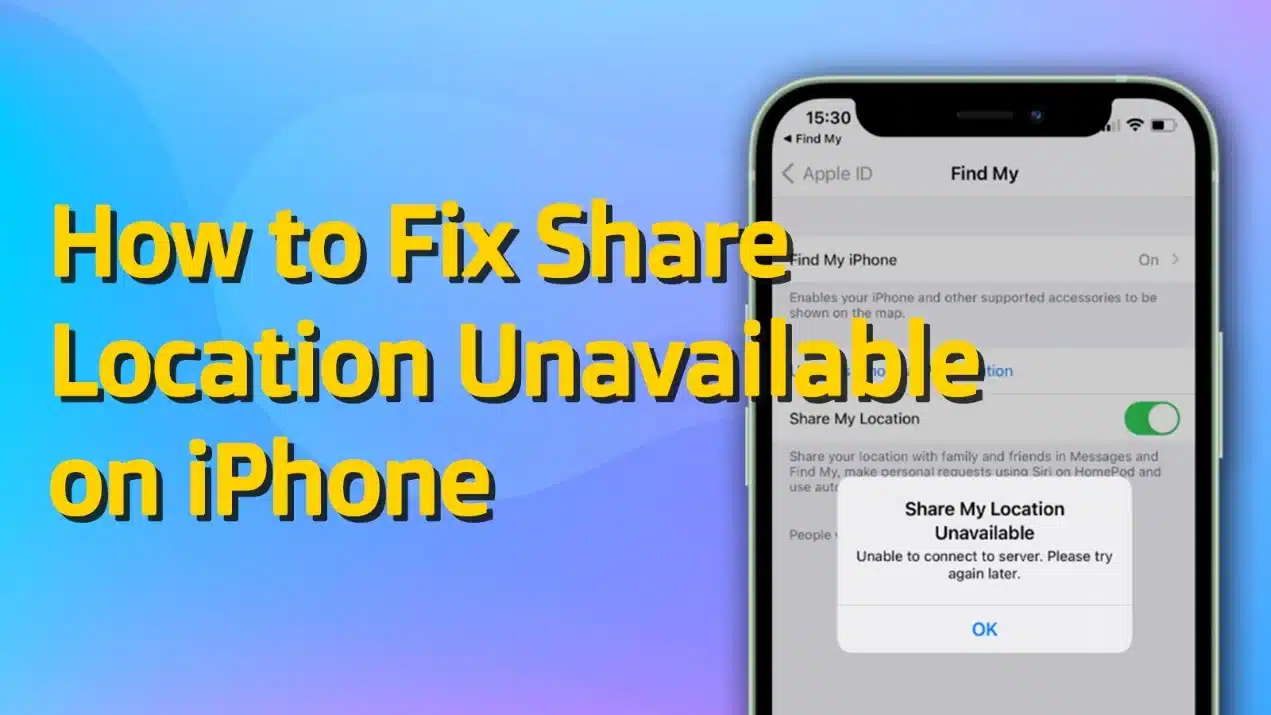
Are you frustrated because you see the message “Share location unavailable please try again later” when you try to share your location? Especially when you’re trying to meet someone, keep tabs on family, or share your live location for safety. The good news is that this error is usually caused by a wrong setting, a weak network, or a small iOS glitch.
In this guide, you will learn why share location is unavailable on iPhone and how to fix it with 7 simple methods, from basic settings to using professional iOS repair tools like TunesKit iOS System Recovery.
Why is Share Location Unavailable on iPhone?
The share location unavailable on iPhone error typically happens for one (or more) of these reasons:
- “Share My Location” is turned off in Find My
- Location Services is disabled, or Find My doesn’t have permission
- iCloud/Apple ID issues, such as an account mismatch or sign-in glitch
- Apple’s Find My or iCloud servers are down
- Network problems (weak WiFi/cellular, VPN interference)
- iOS bugs or system errors after an update or settings change
- Incorrect date/time or restrictions like Screen Time limits
If any part breaks, your iPhone may show share location unavailable.
How to Fix iPhone Share Location Unavailable
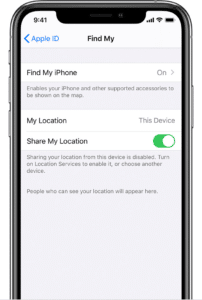
Method 1: Turn On “Share My Location” in Find My
This is the most important setting. Find My uses “Share My Location” to send your live location to others. If it is disabled, you will see “Share Location Unavailable”.
Steps:
- Open Settings, tap your Apple ID name (at the top)
- Tap Find My, turn on Share My Location
- Then open the Find Myapp, tap People, try sharing your location again
If you have more than one Apple device, make sure the correct device is set as your location source.
Method 2: Enable Location Services on iPhone
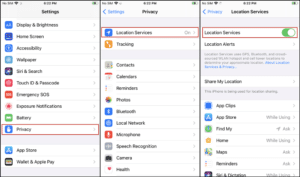
Even if Find My is on, your iPhone still needs location services to get your real GPS location. Without location services, your iPhone cannot detect where you are.
Steps:
- Go to Settings > Privacy & Security > Location Service, turn on Location Services
- Now check Find My permissions, scroll down and tap Find My
- Set it to While Using the Appor Always, and you can choose turn on Precise Location
Method 3: Use iOS System Repair Tool
If your settings are correct but the issue still happens, your iPhone may have a system problem. It can be caused by iOS update bugs, system glitches, Find My crashing in the background, GPS not working correctly or iCloud sync issues. In this case, an iOS system repair tool can help.
Among the many options, TunesKit iOS System Recovery is the most recommended because it can fix over 150 iOS problems without data loss. It is a good option if you want a safer fix than resetting your iPhone.
Steps to fix Share Location Unavailable using TunesKit:
- Install and launch TunesKit iOS System Recovery on your computer. Connect your iPhone to the computer with a USB cable.
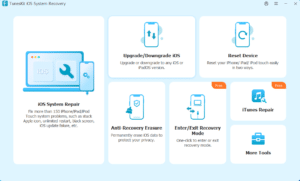
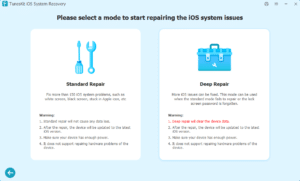
- ChooseiOS System Recovery, and you will see the issue list that TunesKitsupports to repair. Click Start. Then select Standard Repair. This mode will not delete your data.
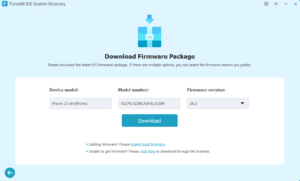
- Confirm your device information, then download the firmware package. If you already have existing firmware, you can also choose to import local firmware directly.
- Click Start Standard Repairand wait for the process to finish. After the repair, you can open Find My and try sharing your location again.
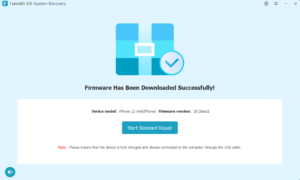
Through these simple steps. TunesKit iOS System Recovery saves time and money by avoiding costly repairs or factory resets, making iOS troubleshooting simple and efficient. Besides iPhone share location unavailable, TunesKit can also fix iPhone green screen, iPhone not charging, stuck on Apple logo, and so on. It is compatible with almost all iPhone models and the latest iOS version. Ideal for users who want to restore their devices’ normal functions quickly without technical skills.
Method 4: Reset Location & Privacy Settings
If your iPhone has the wrong permissions, Find My may not be able to access your location properly. This reset clears all location and privacy permissions, giving your iPhone a fresh start.
Steps:
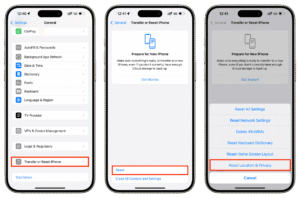
- Go to Settings > General > Transfer or Reset iPhone > Reset, choose Reset Location & Privacy
- Enter your screen passcode, wait for the process to finish.
- After resetting, open Find My and allow location permission when asked, then test location sharing again.
Method 5: Check Apple ID and Sign in Again
Your Apple ID is the key to Find My. If your iCloud account is not syncing, location sharing can fail. Signing out and signing in can refresh the iCloud connection. It can also fix stuck iCloud services.
Steps:
- Open Settings, tap your Apple ID name
- Scroll down and tap Sign Out. Enter your Apple ID password (if needed)
- Restart your iPhone
- Go back to Settings, tap Sign in to your iPhone
- After signing in, go to Settings > Apple ID > Find My, make sure Share My Locationis ON
Method 6: Force Restart iPhone
Sometimes Find My is stuck in the background. A force restart can fix many small bugs. It can also restart location services and background system processes, especially if your iPhone is frozen or not responding.
For iPhone 8 and later:
- Press Volume Up button and release
- Press Volume Down button and release
- Press and hold the Side button until white Apple logo appears
For iPhone 7 or 7 Plus:
- Press and hold Volume Down button and Power button
- Release when you see the white Apple logo
For iPhone 6s and earlier:
- Press and hold Home button and Power button
- Release when white Apple logo appears
Method 7: Update iOS to the Latest Version
Apple often fixes Find My issues in iOS updates. Updating can remove bugs and improve system stability. If your iOS is old, it may have bugs that affect Find My and location sharing. Before you update, make sure you have connected to a stable Wi-Fi and have enough storage space and sufficient battery power.
Steps:
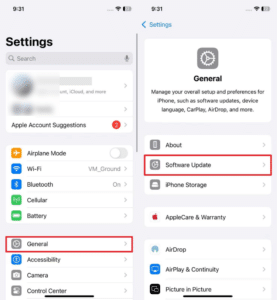
- Go to Settings > General > Software Update
- Tap Download and Install if an update is available
You can also choose use iTunes or Finder to update your iPhone.
FAQs About iPhone Share Location Unavailable
-
Why does Share Location Unavailable show for only one person?
This can happen if that person turned off Share My Location, has no internet connection, signed out of Apple ID or has Location Services disabled. Ask them to check their Find My settings too.
-
Can a weak network cause Share Location Unavailable?
Yes. Find My needs internet to send your location. Try switching between Wi-Fi and cellular connections. Also, try turning off VPN if you use one.
-
Will Reset Location & Privacy delete my data?
No. It will not delete your photos or apps. It only resets permissions and privacy settings.
Conclusion
The Share Location Unavailable on iPhone error can happen for many reasons. But most of the time, you can fix it quickly by turning on Share My Location, enabling Location Services, restarting your iPhone, or updating iOS. If the issue is caused by an iOS glitch, using a repair tool like TunesKit iOS System Recovery can help you fix the system safely and restore location sharing without data loss. Try these methods, and you should be able to share your location again with no problem.

How Technology is Changing the Way Children Learn — and Why That Matters

What Are the Best Small Hearing Aids for First-Time Buyers?
Optimize Team Scheduling with WiFi Time Clock Tracking