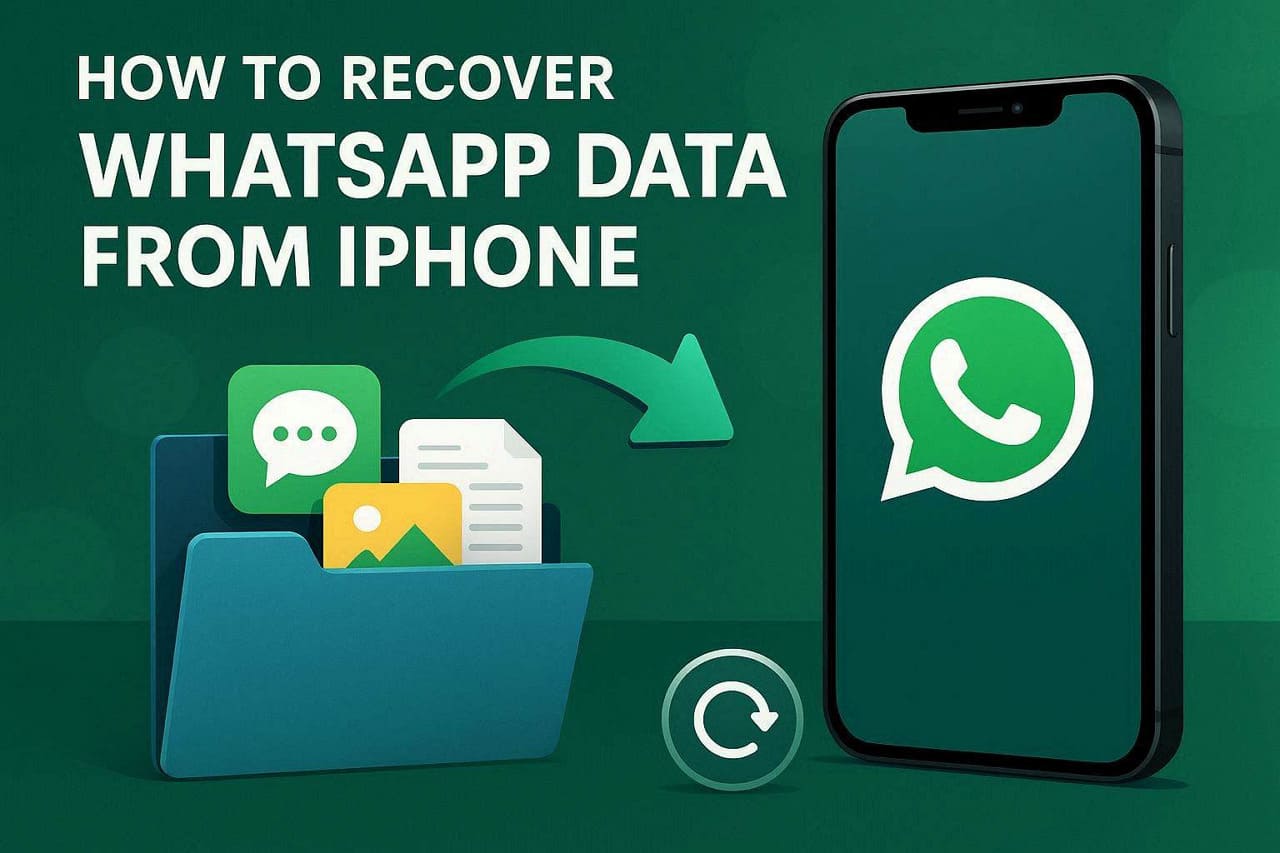
How to Recover WhatsApp Data from iPhone
Most of the time, WhatsApp messages are lost because of accidental deletion, an iPhone reset, or failed updates. This can be linked to other causes, but users seek simple and effective ways on how to recover deleted WhatsApp messages on iPhone.
Since they are not completely gone, this guide explains what happens to deleted iOS WhatsApp messages. In addition, learn how the Dr.Fone – Data Recovery (iOS) tool could be an ideal choice when you don’t have a backup.
Part 1. What Happens When You Delete WhatsApp Data on iPhone?
Before you choose the iPhone data recovery software for WhatsApp data retrieval, it’s important to know what happens to the lost data. When you tap the Delete button on chats, images, or videos, the data is removed from the app. Hence, the ability to recover them depends largely on available backups and whether the data was overwritten.
If you uninstall WhatsApp without a backup, your chats are generally unrecoverable through official restoration methods. With the backup, the data is recoverable unless it’s overwritten, and is guided below:
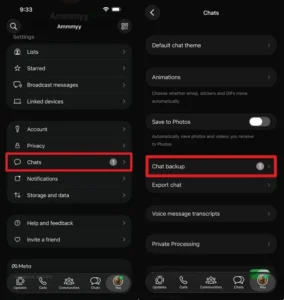
Step 1. Go to WhatsApp Chat settings > Chat Backup to check whether the last backup was created before deletion.
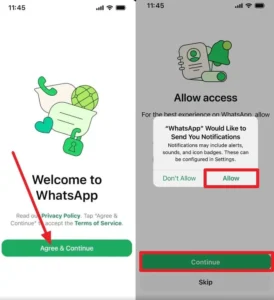
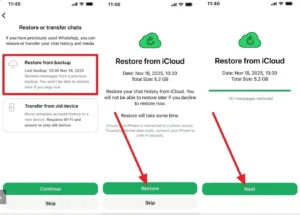
Step 2. Reinstall WhatsApp and pick the “Agree & Continue” button to add the old phone details. After that, pick the “Next,” Continue,” and Allow” buttons to commence the WhatsApp data retrieval.
Step 3. Here, choose the “Restore from Backup” option to continue and press “Restore” to begin restoration. Then, tap “Next” to view the “Restoring Media” progress bar in the Chats section and locate your recovered data once the process finishes.
WhatsApp Backup Limitations and Sync Issues
As you learn how to recover deleted WhatsApp messages on iPhone, the method has certain limitations. WhatsApp on iPhone uses its own iCloud backup system, separate from your regular iPhone backup. Hence, only the most recent WhatsApp backup can be restored, as each backup replaces the previous one.
So, if the iCloud storage is low or your connection is unstable, the backup may fail, and recovery becomes impossible. In addition, if the data was deleted before the backup, restoration will not be possible, likewise for corrupted backups.
No iCloud backup? Recovery Is Still Possible (Sometimes)
If you never enabled WhatsApp’s iCloud backup, it’s true that the recovery becomes difficult. However, some third-party iOS recovery software can scan your iPhone and retrieve WhatsApp data from the device. You can also use the Finder or iTunes backup, but this restores the whole device, rather than WhatsApp media.
Part 2. Why Use iOS Recovery Software for WhatsApp Recovery?
For selective WhatsApp data recovery, you can use iPhone data recovery software like Dr.Fone – Data Recovery. From WhatsApp to WhatsApp Business, you can retrieve data from your device, iCloud, iTunes, or local backups. From the device, the tool also lets you recover View Once media files, which is an exceptional feature.
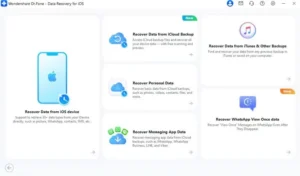
Since the tool is versatile, you can also use it to recover data from Viber, WhatsApp, LINE, and Kik, which you can later save to your phone and PC. Additionally, the read-only scan is free and will not overwrite any existing data. Compared to official methods, you can choose which chat or media you want to keep and later preview them to assess accuracy.
Part 3. Recovering WhatsApp Messages with Dr.Fone
So, if you wonder how to recover deleted WhatsApp messages on iPhone, review the mentioned guide in detail. Here, you will learn about WhatsApp data retrieval, as it’s a main concern for iPhone users.
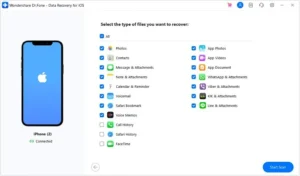
Step 1. Choose the WhatsApp App for iPhone
After selecting the “Recover Data from iOS Device” feature from the iPhone Data Recovery tool, enable the “WhatsApp & Attachments” option and press “Start Scan.”
Step 2. Restore Your Required WhatsApp Data
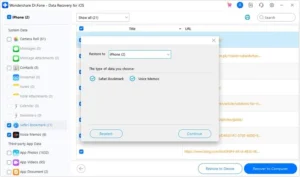
Once Dr.Fone recovers your WhatsApp, select the required data like messages or attachments and press the “Restore to Device” or “Restore to Computer” button.
Part 4. Tips to Protect Your WhatsApp Conversations
According to iOS experts, Dr.Fone iPhone data recovery software is the preferred choice for selective data recovery. So, to ensure you never lose WhatsApp data again, adhere to the 5 tips mentioned in detail:
| Tip | Steps | Why It Helps |
| Enable WhatsApp iCloud Backup | WhatsApp > Settings > Chats > Chat Backup > Auto Backup | Keep a recoverable copy of your chats. |
| Back Up Regularly | WhatsApp > Settings > Chats > Chat Backup > Back Up Now | Reduces the risk of losing recent messages. |
| Verify Backup Success | Check the latest backup date in Chat Backup | Ensures backups are completed successfully. |
| Save Important Media Separately | Open Media > Share > Save to Photos/Files | Protects important files from chat deletion. |
| Avoid Unnecessary Chat Deletion | Long-press chat > Archive Chat | Prevents accidental loss of conversations. |
Final Thoughts
Official methods can be a limit when you want to learn how to recover deleted WhatsApp messages on an iPhone immediately. Since they are bound to backup and complete restoration, exports suggest that you use Dr.Fone – Data Recovery (iOS) when you need to retrieve some lost chats and media files. You can also use it to restore View Once media files that other recovery tools can’t.
How to Recover WhatsApp Data from iPhone

How Technology is Changing the Way Children Learn — and Why That Matters

What Are the Best Small Hearing Aids for First-Time Buyers?