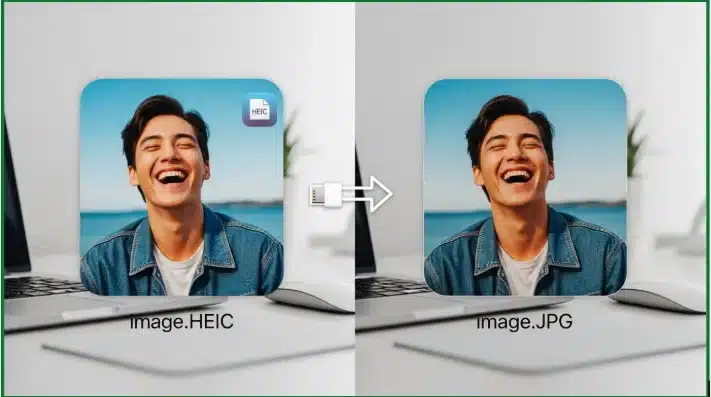
Users click images on iPhones or other Apple devices because of the extreme quality they offer. These images are saved in HEIC format. This file type keeps photos sharp but small, which helps save space on your phone. This format works well on Apple devices.
When it comes to other software programs and platforms, they do not open HEIC pictures easily. That makes people curious to ask how to convert HEIC to JPG for use everywhere from Windows to Android and websites to photo editors and more.
This guide answers this question simply. You will learn easy ways to change HEIC files to JPG using the online Clideo HEIC to JPG converter, along with tips and steps for different devices.
Alt: HEIC to JPG
What Are HEIC and JPG and Why Conversion Matters
HEIC stands for High Efficiency Image Container and Apple introduced this format because it saves space without losing photo quality. Platforms consider JPG or JPEG as the most common image format. It works across all devices and platforms. As HEIC causes trouble on some computers and apps, you might need to change HEIC to JPG so the image opens anywhere.
Here’s a simple comparison:
- HEIC
- Small file size
- High image quality
- Not supported everywhere
- JPG
- Larger file size
- Works on most platforms
- Easy to share and upload
Converting your photos makes sure you can use them on any computer or phone without errors. For example, some printers and social media sites require JPG files, so converting from HEIC fixes that problem quickly.
Why People Need to Change HEIC to JPG
Here are common reasons people convert from HEIC to JPG:
- Your Windows computer cannot open HEIC photos easily.
- You want to post pictures online without errors.
- You plan to edit images in software that only reads JPG.
- You need to attach a photo to a file or form that only accepts JPG.
- You want to store photos in a format most systems understand.
Using the Clideo online converter makes this process very simple without installing extra apps.
Meet the Clideo HEIC to JPG Converter
Clideo offers a simple online tool that changes HEIC photos to JPG format fast. You do this right in the browser on your phone, tablet or computer. You don’t need any installation, and the tool handles your files securely while keeping quality.
Key features of this tool:
- Works in any major browser.
- Free and easy to use.
- Handles HEIC files from iPhone and other devices.
- Lets you download the converted JPG right away.
- No watermark on your output image.
The Clideo HEIC to JPG tool is a great choice when you require a quick and reliable conversion.
How to Convert a HEIC to JPG Using Clideo
Below are clear steps to do the conversion for different devices. This process helps in changing your files within seconds by following simple points.
How to Convert HEIC to JPG on Windows
Computers have Windows OS and they don’t open HEIC files by default. You have a chance to convert the file whenever you need with Clideo. The steps are here:
- Open your web browser
- Go to the Clideo HEIC to JPG converter page
- Click the upload button on the tool
- Choose your HEIC file from your computer
- Pick ‘JPG’ as the output format in the conversion options
- Start the conversion. A short wait follows while Clideo processes your file.
- After finishing, download your new JPG picture to your device.
This method works well for converting HEIC to JPG in Windows 10, Windows 11 or older versions when you use a browser. Many users find this easier than installing software just to open a single photo.
How to Convert HEIC to JPG on Mac
Mac computers may open HEIC files. For editing purposes or uploading images to any other app or tool, like a video compressor, you might still want to have them in JPG format for broader use. Clideo helps you in conversion of files. Here is how to change HEIC files to JPG easily:
- Open Safari, Chrome or another browser on your Mac.
- Visit the Clideo HEIC to JPG converter online.
- Upload your HEIC photo and select ‘JPG’ from the list.
- Let Clideo process the file.
- Click download when the conversion finishes.
This approach helps when sharing photos with devices that cannot read HEIC. You can also keep backups in JPG format for future use.
How to Convert HEIC to JPG on iPhone
The Apple devices save photos in HEIC format by default. Users often realize this only when an upload fails.
Instead of changing camera settings or exporting photos manually, you can convert images directly using Clideo type online tools in your mobile browser.
Easy Steps to turn HEIC into JPG:
- Open the web browser on your iPhone
- Visit the Clideo HEIC to JPG converter
- Upload the photo you want to convert
- Choose ‘JPG’ for the output format
- Download the new JPG to your phone
You can repeat this for each photo, and saved JPG files show up in your Photos library for easy access.
How to Convert HEIC to JPG on Android
HEIC image format is Apple’s file format and Android devices don’t support it or save photos in it by default. You need to change the file format to save photos in your Android devices or to upload to any Play Store app.
Here’s how to change HEIC to JPG on Android:
- Open your browser on the phone.
- Go to the Clideo HEIC to JPG tool.
- Tap to upload the HEIC photo.
- Choose JPG and start the process.
- Download the JPG image.
This makes your images easier to view, share, or save on Android devices.
More Conversion Options on Clideo
The Clideo converter or Clideo app is a diverse tool, not only changing HEIC to JPG. You can use it to convert HEIC files into formats such as HEIC to PNG
- HEIC to PNG
- HEIC to MP4
- HEIC to WEBP
- HEIC to GIF
- HEIC to MOV
- HEIC to TIFF
- HEIC to SVG
- HEIC to BMP
This is useful when specific software needs a particular file type. You can also use the converter to make slideshows or video projects using your photos.
Tips for Quick and Easy Conversion
Here are some useful tips that many people use when working with HEIC files:
- Batch convert many photos at once when you have large folders of images.
- Save JPG copies, so you always have files that open anywhere.
- Check image quality after conversion to make sure colors and sharpness stayed strong.
Most conversion tools, including Clideo, keep photo quality high so you do not lose details while changing file types.
FAQs
Can I open HEIC files without converting?
Some recent Windows versions and apps may open HEIC, but many do not. Converting to JPG guarantees broad support.
Does converting from HEIC make my photo worse?
Not usually. A Clideo type good online conversion tool keeps the image quality close to the original.
Can I convert HEIC to PDF?
Clideo also provides tools to change photos into PDF files if you require them for documents or forms.
What happens when I rename a HEIC file to JPG?
The file doesn’t convert to your required format by simply changing its name. The photo format stays the same and most apps still can’t open it. Real conversion uses a reliable tool like Clideo to rebuild the file in the new format.
Conclusion
Having your images in a format that works everywhere is important for sharing and editing files, and saving memories. The Clideo HEIC to JPG converter helps you do just that with simple steps and no extra software. The process stays similar and quick irrespective of your device or OS, from Windows and Mac to iPhone and Android.
Using the right tool for HEIC to JPG conversion makes your life easier and your photos ready for anything. Try the online converter and get JPG pictures that work on every device and platform you use.

How Email Widgets Can Support Time-Sensitive Email Marketing
Deepseekplay com: A Comprehensive Guide to Features and Benefits

Best Document Standardization Tools of 2026: Top Tools for Locking Slide Layouts as PDFs