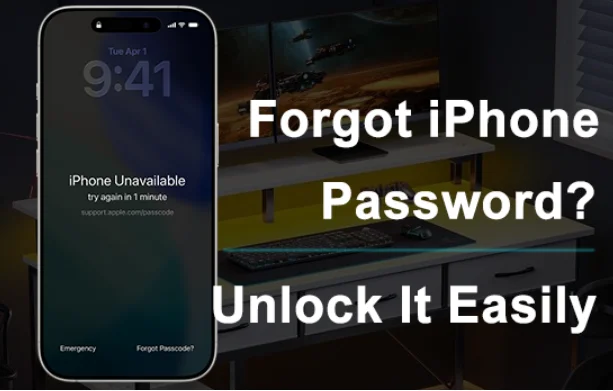
For most people, an iPhone lock screen is the first layer of security that keeps their personal data safe. But when you forget the passcode, whether it’s a 6-digit code, Touch ID, or Face ID, the same security that protects you becomes a barrier. It’s a stressful, confusing moment: the screen keeps asking for the password you can’t remember, and too many wrong attempts trigger the dreaded iPhone Unavailable or Security Lockout screen.
If you’re currently stuck, don’t panic. There are several safe and proven methods to unlock your iPhone even if you forgot the password, and this guide walks you through everything in a clear, practical way. Whether you use iTunes, iCloud, Finder, or a professional unlocking tool, you’ll be able to choose what fits your situation best.
This article explains each method step by step and also introduces a simple solution, MagFone iPhone Unlocker, for users who want a smoother, faster, no-tech approach without relying on iTunes or Apple ID.
Why iPhones Lock You Out After Forgotten Password
Before moving into solutions, it’s helpful to understand why this happens. iOS is designed to protect your data, so:
- Entering the wrong passcode too many times locks the phone.
- Security Lockout appears after repeated failed attempts.
- You may be required to erase the device before unlocking it.
This is why having the right method matters. Some require Apple ID, some require a computer, and some only work under specific conditions, like “Find My iPhone” being enabled.
Method 1: Unlock iPhone Using iCloud (When Find My iPhone Is Enabled)
If Find My iPhone was turned on before you got locked out, you can unlock your device remotely by erasing it via iCloud. This method requires you remember Apple ID password, Internet connection, and Find My iPhone enabled.
Go to iCloud official website. Sign in using your Apple ID. Tap Find Devices. Select your locked iPhone from the list. Choose Erase iPhone. This erases all data on the device, including the forgotten passcode. When it restarts, you can set it up again and restore from an iCloud backup.
Best for: Users who remember their Apple ID and had Find My iPhone enabled.
Method 2: Unlock iPhone Using iTunes or Finder
If you previously synced your iPhone with iTunes (Windows) or Finder (Mac), you can restore it without needing the passcode. This method is useful for users who prefer using Apple’s built-in tools.
Turn off your iPhone, put it into Recovery Mode. Connect your iPhone to the computer. Open iTunes or Finder. A popup will appear. Choose Restore. This reinstalls iOS and removes the lock screen.
Best for: Users with a computer and a previous trusted connection.
Method 3: Unlock iPhone Without Password Using MagFone iPhone Unlocker
For users who don’t remember their Apple ID, never synced with iTunes, or keep seeing errors like iPhone cannot be restored, this solution is the most straightforward.
MagFone iPhone Unlocker is a professional tool designed for unlocking iPhones when you forget the password, without requiring advanced knowledge or multiple complicated steps. It removes different types of screen locks, 6-digit passcode, Touch ID, Face ID, and even disabled/unavailable screens.
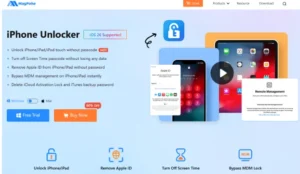
It’s especially useful for people who:
- Forgot the iPhone passcode
- Bought a second-hand iPhone that is locked
- Can’t activate their device through iTunes
- Are stuck in Security Lockout
- Need a fast, guaranteed method without Apple ID
Key Advantages
- Works on all major iPhone models and iOS versions
- No Apple ID required
- Simple, guided steps
- Fixes iPhone unavailable / security lockout issues
- Remove MDM from iPhone/iPad
- Bypass iCloud activation lock
This keeps the process simple for beginners and reliable for users who just want to get back into their device without dealing with complex Apple restoration processes.
How to Unlock iPhone Using MagFone iPhone Unlocker
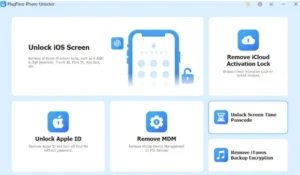
Step 1: Install and open the MagFone iPhone Unlocker on your computer. Connect your iPhone using a USB cable, then choose Unlock iOS Screen.
Step 2: Follow the on-screen instructions to put your iPhone in Recovery or DFU mode. The software provides clear guidance for each iPhone model.

Step 3: The program will detect your device information. Confirm everything is correct, then click Download to get the necessary firmware.
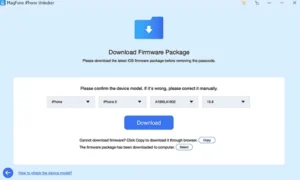
Step 4: Click Unlock button after the firmware is ready, c. The tool will begin removing the forgotten passcode. After a few minutes, your iPhone will restart without the lock screen.

Best for: Users who want the easiest, fastest solution without Apple ID, iTunes, or technical procedures.
Method 4: Use Recovery Mode Without a Computer (Only on Newer iOS Versions)
Some newer iOS versions allow you to erase the device directly from the lock screen after multiple failed attempts, if the phone is connected to the internet and linked to your Apple ID. When you see Erase iPhone, tap it and follow the instructions.
Limitations:
- Requires Apple ID
- Not available on older devices
- Requires network connection
Which Method Should You Choose?
| User Situation | Best Method |
|---|---|
| You know Apple ID + Find My iPhone is on | iCloud |
| You have a trusted computer | iTunes/Finder |
| You want the fastest and simplest method | MagFone iPhone Unlocker |
| iTunes doesn’t recognize your iPhone | MagFone iPhone Unlocker |
| You don’t remember Apple ID | MagFone iPhone Unlocker |
| Your iPhone locked to owner | MagFone iPhone Unlocker |
Final Thoughts
Forgetting your iPhone password can be stressful, but not irreversible. Apple gives you a few ways to recover access, as long as you have your Apple ID or a trusted computer. But for many users, those conditions aren’t always met.
That’s where MagFone iPhone Unlocker becomes especially helpful. It removes the passcode without requiring Apple ID or previous syncing, making the entire process smooth and beginner-friendly. While the goal is always to keep your data secure, having a reliable iPhone unlocker software ensures you can regain access when mistakes happen.
If you’re locked out and need a clear, straightforward solution, choosing the right method from above will help you unlock your iPhone safely, and get back to using your device without frustration.
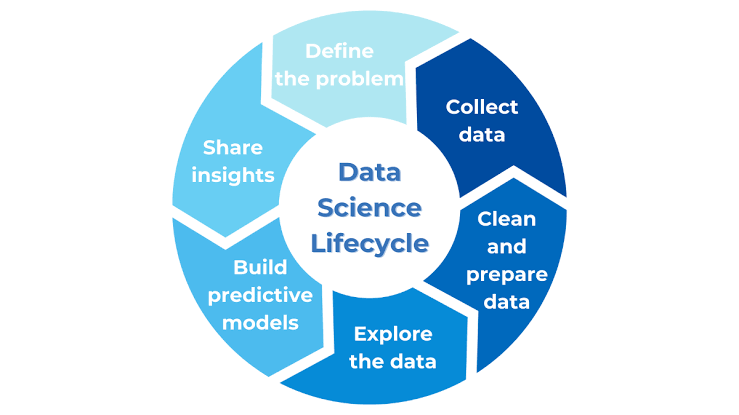
Team Collaboration: Agile Role Definition: Defining the Data Scientist's specific responsibilities and interaction points within a Scrum or Kanban framework.

What to Look for in an SEO Agency in Dubai (Before You Sign Anything)
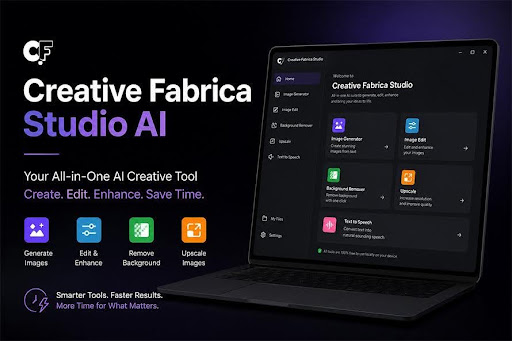
How Creative Fabrica Desktop AI Tool Can Save Time in Your AI Creative Workflow