Creating digital content often involves much more than generating one AI image. A typical project may require several drafts, background removal, image enhancement, resized graphics, and sometimes audio for a presentation or video. Moving between different websites and applications for each task can interrupt your workflow and make even simple projects take longer than expected.
That is why many creators are starting to look at desktop AI solutions.
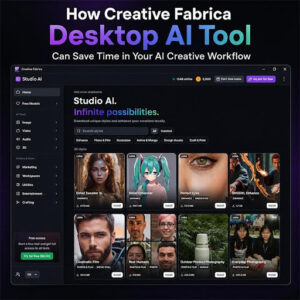
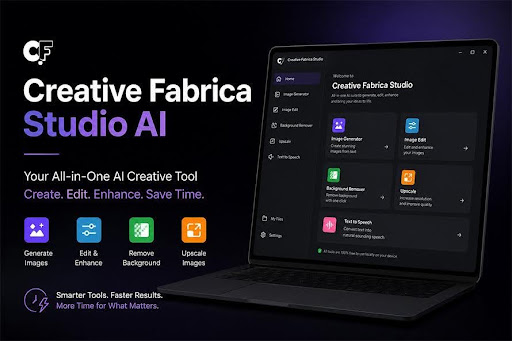
The latest version of the Creative Fabrica Desktop AI Tool brings several creative tools together in one application. It includes local AI image generation, High Quality Rendering, more than fifteen built-in LoRAs, background removal, image upscaling, and text-to-speech for Windows and Mac.
Instead of thinking about each feature separately, it is more useful to look at how they work together. A smoother workflow means you spend less time managing files and more time improving your creative ideas.
Start with Fast Drafts Before Creating the Final Image
One habit that saves a surprising amount of time is separating the idea stage from the final rendering stage.
Many beginners immediately generate every image using the highest quality settings. While that sounds like the best approach, it often means spending extra time creating detailed images that will later be discarded.
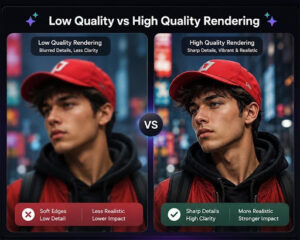
A better workflow begins with Low Quality Rendering.
Imagine you are designing a YouTube thumbnail for a technology review. Instead of committing to one concept, create several quick drafts. Try different camera angles, lighting, colors, and compositions. Compare them side by side and ask yourself which version catches your attention first.
After choosing the strongest concept, switch to High Quality Rendering.
This second step creates a cleaner image with improved textures, sharper details, and more balanced lighting. Small design elements become easier to recognize, making the image suitable for blog headers, presentations, advertising graphics, or printed material.
Working this way allows you to explore ideas quickly while using the highest quality only for the version you actually plan to publish.
Built-in LoRAs Help You Keep a Consistent Visual Style
One challenge with AI image generation is consistency. You might create one excellent image, but the next image for the same project can look completely different.
Built-in LoRAs help solve that problem.
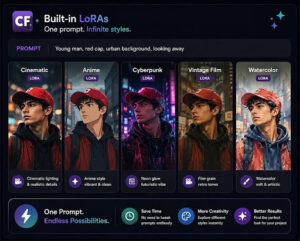
A LoRA is a small AI model trained to add a particular artistic style or visual characteristic without replacing the main image model. Instead of writing increasingly complex prompts, you can select a LoRA that matches the look you want.
Creative Fabrica Desktop includes more than fifteen built-in LoRAs, giving you a variety of creative styles from the moment you install the application.
Imagine you are creating graphics for a travel website. You need a homepage banner, three article headers, and several social media posts. By using the same LoRA across every image, the artwork shares a similar appearance. Colors, textures, and artistic style remain more consistent, making the finished website look more professional.
The same idea applies to children’s books, printable planners, greeting cards, product packaging, educational resources, and YouTube thumbnails. A consistent style helps people recognize your work and gives larger projects a more unified appearance.
Finish More Tasks Without Leaving the Application
Generating an image is only one part of most creative projects. The remaining steps often take just as much time if you rely on different tools for every task.
Suppose you are creating promotional graphics for an online clothing store.
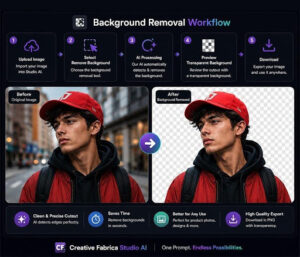
You generate a lifestyle image using High Quality Rendering. The clothing looks great, but the background does not match the store’s branding. Instead of starting again, you remove the background and place the model onto a new design.
Next, the same image needs to appear on a homepage banner and a printed brochure. Rather than enlarging the original file and losing detail, you use image upscaling to prepare a higher-resolution version.
Finally, the marketing team wants a short promotional video. You write a brief introduction and convert it into narration using the text-to-speech feature.
Completing these steps inside one application creates a smoother workflow than moving files between several different services.
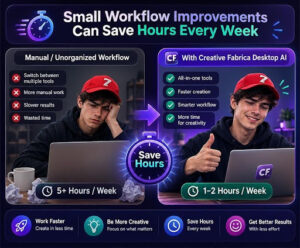
Small Workflow Improvements Can Save Hours Every Week
Many creators look for ways to work faster, but speed does not always come from generating images more quickly. It often comes from reducing the number of repetitive steps between the first idea and the finished project.
Imagine you publish two blog posts every week. Each article needs a featured image, two supporting graphics, and a social media post. Instead of opening several websites to complete each task, you can keep everything inside one application.
The same idea applies to online sellers. A new product usually needs a clean product photo, a promotional banner, and images for different marketplaces. After generating supporting visuals, you can remove backgrounds from product photos, prepare transparent PNG files, and upscale selected images for larger banners without changing software.
Teachers can prepare lesson graphics, worksheets, and presentation slides using the same workflow. Marketing teams can quickly create campaign concepts before client meetings. Freelancers working with multiple clients can organize projects more easily because image generation, editing, and enhancement all happen in one place.
Saving a few minutes on every project may not seem like much at first, but those small improvements become meaningful over weeks and months of creative work.
High Quality Rendering Produces Images Ready for Real Projects
High Quality Rendering is one of the features that has the biggest impact on the final result.
Quick drafts are useful while exploring ideas, but the images you actually publish should look polished. Fine textures, realistic lighting, smoother edges, and better detail become much more noticeable when graphics appear on large monitors, printed materials, or high-resolution mobile displays.
Consider a small business preparing a seasonal marketing campaign.
The team begins by creating several promotional concepts in Low Quality Rendering. They compare different layouts, product arrangements, and lighting without spending unnecessary time on every version.
After selecting the strongest concept, they switch to High Quality Rendering. The final image is then used on the company website, in email newsletters, social media advertisements, and printed flyers.
Using this two-step approach keeps the creative process efficient while making sure the published artwork looks much more refined. Rather than rendering every idea in maximum quality, you reserve the highest setting for the images that will actually represent your brand.
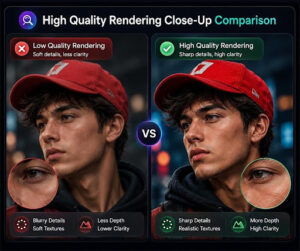
Low Quality Rendering vs High Quality Rendering
| Feature | Low Quality Rendering | High Quality Rendering |
|---|---|---|
| Best For | Testing ideas and layouts | Final images ready to publish |
| Rendering Speed | Faster | Slightly longer |
| Image Detail | Basic details | Sharper textures and finer details |
| Lighting | Standard | More natural and balanced |
| Best Use | Brainstorming and concept creation | Websites, presentations, marketing, print, social media, and client work |
Built-in LoRAs Make Large Projects More Consistent
Creating one beautiful image is relatively easy. Creating twenty images that all look like they belong together is much more challenging.
This is where built-in LoRAs become one of the most useful features in Creative Fabrica Desktop.
A LoRA is a small AI model trained to introduce a specific artistic style, visual concept, or subject without changing the main image model. Since the application includes more than fifteen built-in LoRAs, you can begin experimenting immediately after installation.
Imagine you are creating an educational workbook for children.
The workbook contains a cover page, chapter illustrations, activity pages, and reward certificates. If every illustration has a different artistic style, the workbook feels inconsistent.
Using the same LoRA across the project creates a much more unified appearance. The illustrations share similar colors, textures, and artistic characteristics, helping the finished workbook look professionally planned.
The same approach works for travel blogs, restaurant menus, printable planners, YouTube channels, company presentations, and social media campaigns. Consistency is often just as important as image quality, especially when multiple graphics belong to the same project.
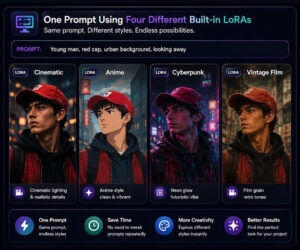
Popular Built-in LoRA Styles and Their Best Uses
| Built-in LoRA | Best Used For |
|---|---|
| Realistic | Product photography, websites, business graphics |
| Fantasy | Book covers, RPG artwork, game environments |
| Comic | Posters, YouTube thumbnails, comic illustrations |
| Watercolor | Greeting cards, children’s books |
| Anime | Character artwork and fan art |
| Interior Design | Mood boards and room concepts |
| Digital Painting | Concept art, presentations, and social media graphics |
Frequently Asked Questions
1. Why should I use Low Quality Rendering before High Quality Rendering?
Low Quality Rendering is ideal for testing ideas quickly. Once you choose your favorite concept, High Quality Rendering creates a cleaner and more detailed version for publishing or printing.
2. What makes High Quality Rendering different?
It produces sharper textures, improved lighting, cleaner edges, and more detailed images that are better suited for professional projects.
3. What is a LoRA?
A LoRA is a small AI model that teaches the main image model a particular style, object, or visual concept without replacing the original model.
4. Why are built-in LoRAs useful?
Having more than fifteen built-in LoRAs means you can explore different artistic styles immediately without downloading additional models.
Popular Built-in LoRA Styles and Their Best Uses
Yes. Using the same LoRA across multiple images helps maintain a consistent visual style for websites, books, marketing campaigns, presentations, and other creative projects.
6. When is background removal most useful?
Background removal works well for product photos, portraits, logos, social media graphics, online stores, presentations, and transparent PNG images.
7. Why should I upscale an image?
Image upscaling helps improve older or smaller images so they look better on large screens, printed materials, banners, presentations, and modern websites.
8. Who can benefit from Creative Fabrica Desktop?
Designers, bloggers, marketers, teachers, freelancers, online sellers, content creators, students, and small businesses can all use its AI tools to speed up everyday creative work.
Final Thoughts
Productivity is not only about working faster. It is also about reducing unnecessary steps and giving yourself more time to focus on creative decisions.
The Creative Fabrica Desktop Studio AI Tool combines local AI image generation, High Quality Rendering, more than fifteen built-in LoRAs, background removal, image upscaling, and text-to-speech in one desktop application for Windows and Mac. Instead of moving between separate tools throughout the day, you can generate ideas, refine artwork, improve image quality, and prepare finished assets from a single workspace.
Whether you create content for clients, run an online business, manage a blog, teach classes, or simply enjoy experimenting with AI, bringing these creative tools together can help simplify your workflow while giving you more control over the final result.
Team Collaboration: Agile Role Definition: Defining the Data Scientist's specific responsibilities and interaction points within a Scrum or Kanban framework.

What to Look for in an SEO Agency in Dubai (Before You Sign Anything)
How Creative Fabrica Desktop AI Tool Can Save Time in Your AI Creative Workflow