

How to Create Custom Product Box Bundles with Flexible Item Selection in WooCommerce
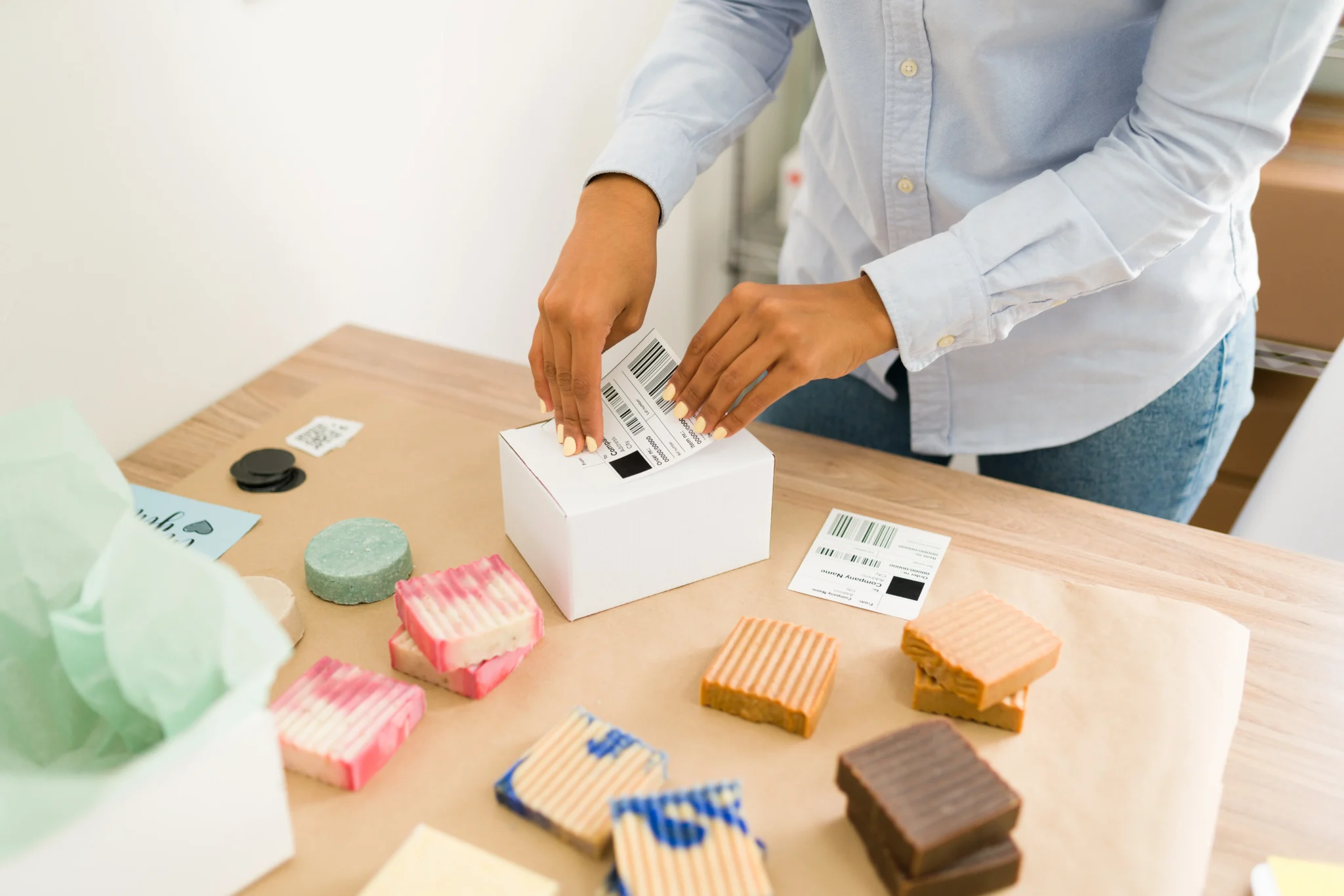
The idea of letting people build their own product bundle has been around for a while, and it keeps growing because shoppers like feeling in control of what they buy. When you start working with WooCommerce custom product boxes the whole thing becomes surprisingly easy to shape.
You can create boxes for snacks or cosmetics or stationery, or really anything you sell, and the setup usually depends on how flexible you want the box to feel. Some stores want a totally free pick while others guide buyers toward a certain mix. I have seen both work well in different contexts, and once you understand the basic structure, it is pretty smooth to put together.
Before anything else, you need the general concept to be clear. A product box in WooCommerce is basically a container with a selection of other products placed inside it. The box itself is the parent product, and it holds all the rules, like how many items a customer can add or which categories they can choose from, and what price is used.
The individual items behave like inputs, and the plugin handles the quantity logic behind the scenes. With WooCommerce product boxes the goal is usually to make the buying experience feel a bit fun or interactive, so the entire process needs to be easy to understand from a shopper’s point of view.
Setting up the product box structure
The first step is creating the parent box product, and this is the part where you define the boundaries. Some stores prefer fixed capacities because it keeps the price flow predictable. Others use a wider range and let customers add a mix without strict limits. You can also decide how the price should behave.
Sometimes the box has a fixed base price, and item prices get added on top. Sometimes you let the overall box price remain flexible so the cost simply updates as the buyer selects items one by one. Either approach works. It just depends on what you are selling and how custom you want that experience to look.
Once the box structure is created, the next step is attaching the product list. You get to choose which items or categories are allowed inside the box. This is an important moment because if you give too many options, the buyer may feel overwhelmed, but if you give too few, the box might feel plain.
A good balance is offering a focused set of choices and making sure each item has a clear purpose within the box. From a user perspective, it feels better when each option looks different enough to encourage mixing rather than repeating the same flavor or color, or style multiple times.
Letting customers pick items with some rules in place
One thing people often overlook is the emotional side of building a box. When the system reacts in real time, it feels more engaging. Most mix and match setups support automatic price updates as the customer adds items. This helps because buyers can see exactly what the final cost will be without jumping back and forth between pages.
If you want the experience to feel guided, you can set minimum or maximum quantities for certain items. You can also lock in required items so the box always contains specific essentials. This is useful in categories like skincare, where a base product is needed for the rest of the selection to make sense.
A flexible box should still have clear directions. It helps when the box capacity appears on the page, maybe with a small counter that shows how many slots are left. When customers see visual feedback, they fill the box more confidently, and they rarely get confused.
If you want to go a bit deeper, you can assign category-based limits so a buyer must pick at least one item from one category and one from another. It works nicely for things like themed gift boxes or seasonal bundles where you want a curated feel without taking away the freedom.
Adding pricing logic without making it complicated
Pricing is usually the part where store owners hesitate because they want it to be transparent for shoppers while still keeping margins healthy. If the box price should change based on the chosen items, the plugin handles this automatically. The buyer sees the updated total instantly, which feels natural during selection. If you prefer a fixed box price, you just tell the system to ignore individual item prices and treat them as included. This style works for curated boxes or gift bundles where you already know the average cost.
There is also the option to add discounts for full boxes. For example, you can allow a slight price reduction when the customer fills all available slots. Many people respond well to this because the reward is immediate and visible.
The key is to keep the discount subtle enough that it doesn’t cut too deeply into profits. When it is done right, the box price remains appealing, and customers feel encouraged to complete it rather than leave it partially filled.
Display choices that encourage better box building
Sometimes the default product display works, but you can usually improve it by adjusting thumbnails or adding short descriptions under each item. A small piece of text can help customers compare similar items and decide faster.
Another good idea is to group items visually. If your allowed items come from different categories, you can show them in sections so shoppers can explore without scrolling endlessly. The goal is always to make the box-building process flow smoothly and reduce any moment where the buyer pauses, thinking they clicked the wrong thing.
Many store owners add a short description above the selector telling buyers how the box works. Something like a friendly one-line explanation can make the entire feature instantly clear. No need to over-explain since the UI usually does most of the work. You just want the buyer to feel comfortable and know that nothing will break if they change their selection halfway through.
Creating boxes for different use cases
Once you get used to the system, you will realize how many types of boxes you can offer. Seasonal boxes can bring a nice sales spike because people like putting together themed presents. Subscription boxes also work well with this format, especially when you allow repeat customers to customize their box each cycle.
Some stores use boxes as a way to introduce new products. They let customers build a starter kit with a few essentials and a couple of experiment items. This helps new products reach people without making the entire purchase feel risky.
Another interesting angle is using product boxes to handle inventory for items that sell better in sets rather than individually. When you group slow-moving items with popular ones, you can clear stock more evenly. It is always important to check the data, though, so you know which combinations make sense for your niche.
Tracking performance and adjusting the box experience
When customers start using the box builder, their behavior often reveals what they truly value. Some items get picked in almost every box, while others are ignored. This is good information because you can decide whether certain items need better descriptions or if they simply do not belong in the box. You can also experiment with different capacities.
Maybe a five-item box works better than a ten-item one, or maybe customers prefer a wider range with a flexible total. The nice thing about working with WooCommerce custom product boxes is that you can adjust rules without rebuilding the entire system each time.
Look at the cart abandonment patterns, too. If people start boxes but leave before finishing, you want to figure out why. Sometimes it is the price. Other times, it is the number of required items. A small tweak, like adding a visual counter or making item categories clearer, can reduce drop-offs.
Final thoughts on setting up flexible product boxes
The entire idea behind WooCommerce product boxes is to give buyers freedom without letting the experience become chaotic. When the structure is set thoughtfully, customers enjoy the freedom to shape what they want, and that usually leads to higher satisfaction since the box feels personal.
The technical setup becomes routine once you understand the parent-child relationship of the box and allowed items. The rest is mostly fine-tuning and small design decisions that improve the flow.
If you plan to expand the feature later, you can introduce new box types or seasonal collections, and the system will handle them the same way. You just create a new box product, attach rules, set the allowed items, and the customer gets a familiar building experience.
It is a flexible format, and once you start using it you will probably find yourself thinking of new ways to use it in other parts of your catalog.

How Traffic Management Businesses Are Improving Field Accountability

How to Plan a Last-Minute Holiday Trip with Instant Loan Support

Turning Cash Flow Into Confidence





Pay Stub Templates You Can Use — Free and Easy to Customize

Holistic Advice for Someone Looking to Reduce Stress

What You Need to Add Multiple File Upload Fields to WooCommerce Checkout
How to Create Custom Product Box Bundles with Flexible Item Selection in WooCommerce

Calesshop: A Modern Approach to Online Shopping
