Have you ever downloaded a photo file only to find out that it won’t open on your desktop, or smartphone? It often happens because of the unsupported file format. HEIC/HEIF is a modern photo format used mainly by iPhones and iPads. This format stores high-quality images in smaller file sizes. Despite being popular format in Apple devices, HEIC/ HEIF format is not compatible with all the devices, photo viewer or editors.
Unlike other photo formats, HEIF/HEIC images can become corrupted due to incomplete download, interrupted transfer, or failed backup.
In this post, we’ll go ahead and explain why HEIC and HEIF images get damaged and how you can repair them online without losing quality.
Why Do HEIC and HEIF Photos Get Corrupted?
-
Sudden Battery Draining or Power Loss
Capturing a photo when your iPhone or iPad battery dies? Or shutting down your PC mid-transfer? These abrupt stoppage often leaves your HEIC photo files half-written.
-
Incomplete Downloads
While downloading HEIC images if the process is interrupted due to low storage space, and poor internet connected, you may notice some pixelation in the image.
-
Crashes during Editing
When editing a HEIF or HEIC photos, if your photo editing app crashes, then the final export will leave you with corrupted image file.
-
File Extension Issues
Often the file extension of image is not labeled correctly as .heic or .heif which cause confusion when opening the file.
-
Unsupported Software
Apps like Photos and Preview on iPhone/ iPad and Mac support HEIC and HEIF image format; however, other photos viewers app such as Microsoft Paint, Picasa, etc.
How Do You Know a HEIC and HEIF Photo File is Corrupted?
Here’s what to look for:
- HEIC image won’t open at all.
- The photo viewer app will throw errors like ‘Cannot Read File’ or ‘Unsupported Format.’
- Pixelated or distorted images.
- Blank or black images.
These are all signs that the HEIC and HEIF image file structure has been damaged in some way.
How to fix a HEIC Image Files Online?
Let’s see how to fix the corrupted HEIC files online:
-
Try a Different Photo Viewer App
If the default photo viewer app doesn’t support the HEIC and HEIF files, then download third-party app like Adobe Lightroom, Photoshop, Affinity Photo, GIMP etc.
-
Rename the File Extension
Often, your HEIC photo file isn’t broken but is labelled incorrectly. Just rename the file to .heic or .heif and try opening the photo again.
-
Convert HEIC image to JPG/PNG
If the corrupted image is in HEIC and HEIC, convert it to most universal and compatible format like JPG or PNG. Use tools like Photoshop, desktop converters and other online HEIC to JPG converters to convert the photo format.
-
Use an Online Photo Repair Software
Use online photo repair tool like Stellar Online Photo Repair to repair your corrupted HEIC and HEIF photo files without any hassle. Online photo repair software work entirely in your web browser – no software download or installation needed. It is an advanced online photo repair tool that gets the job done for you in easy-to-do steps, all while maintaining your privacy. It repair multiple photo formats and keeps the whole experience clean and smooth. Here’s how it typically works:
- Go to the Stellar online photo repair page: Launch Stellar Online Photo Repair page on your browser.
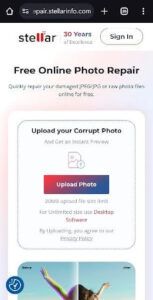
- Upload your corrupted HEIC file: Click the Upload Photo button and select the HEIC/ HEIF file from your smartphone.

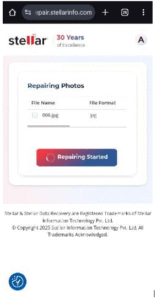
- Repair: Hit the Start Repair button. The web tool will take some time to analyses that corrupted images file of yours and repair it. It shows you the progress in a progress bar here as well.
- Download: After a short time, the tool will give you a download link for the repaired HEIC file.
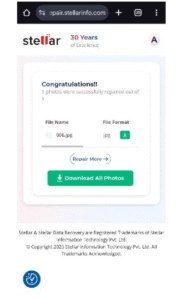
Stellar actually lays this out as “3 Easy Steps: Upload Corrupted Photo, Repair, Save”. Because it’s browser-based, it works on mobile devices, Windows, Mac, and Linux, – anywhere you have a web connection. Key advantages of using a good online photo repair software include:
- No installation required: You don’t have to download software; just use the browser. This keeps things simple.
- Supports all major formats: Stellar’s tool, for example, handles HEIC, HEIF, JPG, PNG and other formats.
- High-quality output: The online repair tool claims to keep your image “crisp, and clear, ”. In practice, if your input HEIC file is high-quality, your repair images will have no loss in photo quality.
- Data Privacy: Unlike many online repair tool which doesn’t give privacy commitment. Stellar has strong commitment to data privacy as all the uploaded and repaired images are auto-deleted within 3 hours.
Using an online photo repair tool is generally the simplest way to repair corrupted HEIC files – no tech skills needed. Just upload the corrupted file and let the website do the work.
Final Thoughts
Repairing corrupted or damaged HEIC and HEIF files is now simpler than ever. You can use a handy online video repair tool to fix them without needing to download the software, just from your web browser. Go ahead and try Stellar Online Photo Repair to fix your HEIC and HIF files. Happy repairing!

How Sales Teams Increased Productivity with Parallel Dialers

Curtain Dry Cleaning and Leather Sofa Cleaning – Reliable Care by Duo Nini

Brian Ferdinand of EverForward Trading Joins Forbes Finance Council, Expanding His Voice on Markets and Risk







How Technology Is Changing Addiction Recovery in the Digital Age.

Our First Winter Trip to Aspen — And the Decision That Made It Stress-Free

How Technology Is Changing Addiction Recovery in the Digital Age.

Puzutask Com: Complete Guide, Reviews, and Login Information
Solve SMD Diodes Sourcing with Utsource's Bulk Options