DDU (Display Driver Uninstaller): Complete Guide — What It Is, How It Works & Why You Need It
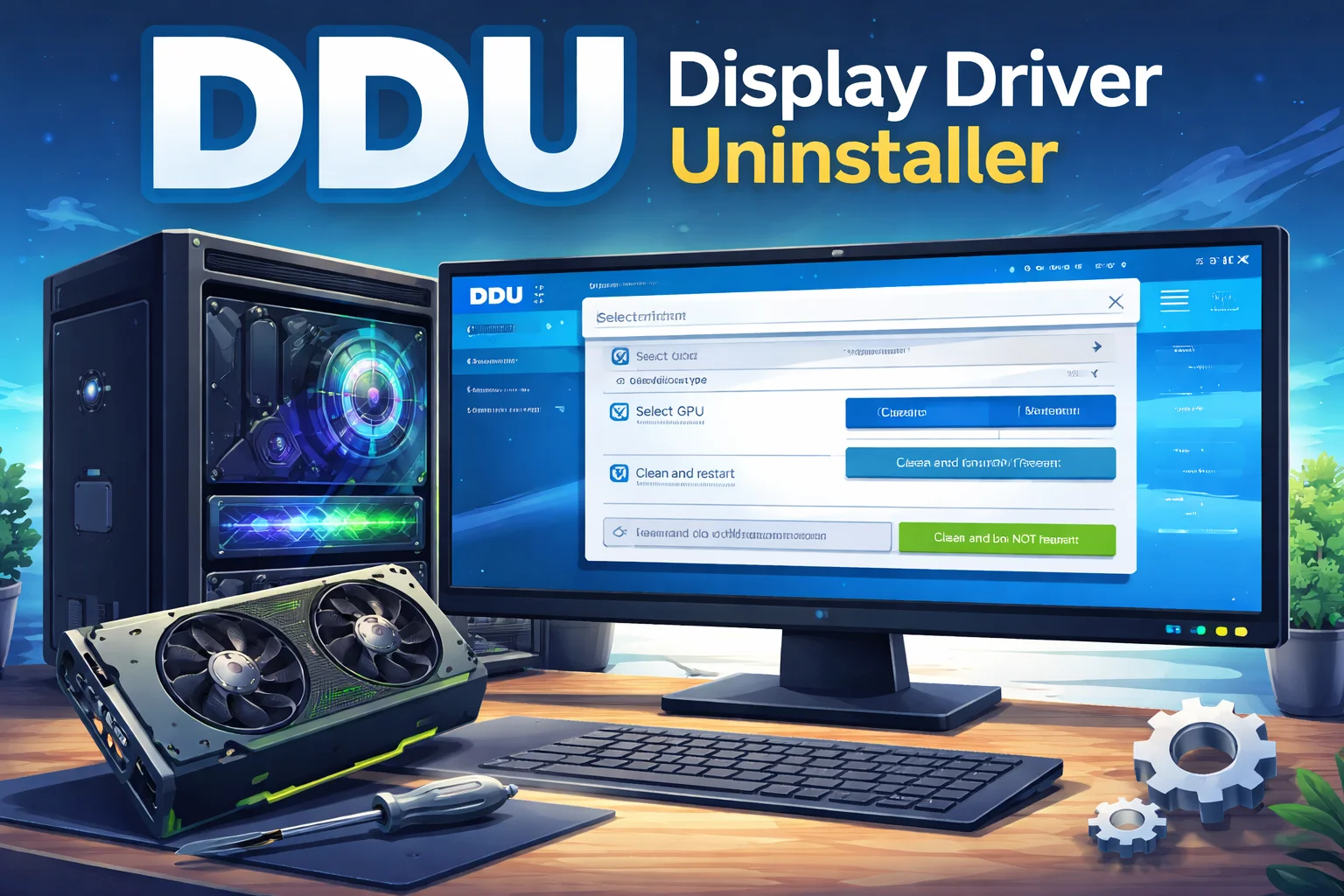
If you’ve ever struggled with graphics driver problems on your Windows PC, you might have heard of DDU. This article explains what DDU really is, how it works, why people search for it, and how to use it safely to fix driver issues. You’ll get simple, clear, and complete information that matches what readers are looking for online and what Google expects in quality content.
Introduction: What Is DDU and Why It Matters?
When your graphics card drivers act up, updating or uninstalling them normally sometimes doesn’t fix the issue. That’s where DDU (Display Driver Uninstaller) comes in. It’s a powerful tool that completely removes GPU drivers — including all hidden files and registry entries — so you can start fresh with a clean installation.
Most people search for DDU when they want a reliable way to fix stubborn graphics problems, switch GPU brands, or make sure no leftover driver parts interfere with new drivers. This deep removal process ensures Windows doesn’t keep old traces that can cause crashes, flickering, or failed driver installs.
What Is DDU (Display Driver Uninstaller)?
DDU stands for Display Driver Uninstaller. It’s a free, portable software tool for Windows that completely removes graphics drivers from your system. Unlike a normal uninstall, DDU goes deep — cleaning driver files, registry keys, configuration data, and leftover folders that Windows often leaves behind.
This tool works with drivers for major brands like NVIDIA, AMD, and Intel. It doesn’t require installation, and it’s designed especially for troubleshooting and clean installs.
Why People Use DDU
When users search for DDU on Google, they usually want a solution to real and specific problems related to graphics drivers. The main reasons include:
Fixing Persistent Driver Errors
Sometimes graphics drivers fail to install properly or start causing system instability. DDU helps by removing every trace of the old driver so a fresh setup can succeed.
Switching GPU Brands
If you are moving from one GPU brand to another — like from NVIDIA to AMD — old driver remnants from the previous installation can conflict with the new driver. Using DDU clears all that residue.
Resolving Display Issues
Black screens, flickering, crashes, or poor performance after driver updates are common reasons people look up DDU guides. A complete driver cleanup often fixes these problems.
Clean Driver Installation
Some advanced users prefer to reinstall drivers from scratch instead of letting Windows update them automatically. DDU gives them a truly clean base for that.
How Display Driver Uninstaller Works
DDU goes beyond the standard uninstall processes. When Windows removes a driver through Device Manager or Control Panel, it often leaves behind remnants — things like registry entries or old driver files that can still affect performance.
DDU removes:
- All driver files associated with the GPU.
- Hidden registry entries used by the old driver.
- Leftover folders in driver store locations.
- Related settings that could conflict with new installations.
It also includes features like blocking Windows Update from automatically reinstalling drivers while you’re cleaning and reinstalling.
When Should You Use DDU — Use Cases & Examples
Not everyone needs to use DDU every time they update drivers. It’s best used when standard uninstall and reinstall don’t fix the problem.
Here are typical scenarios:
1. Driver Won’t Install or Update
If updating drivers normally fails or throws errors, a deep clean with DDU often helps fix the installation issues.
2. Driver Conflicts After Switching GPU
If you replaced your graphics card with a different brand (e.g., NVIDIA → AMD), old driver traces can cause conflicts. DDU clears everything before you install the correct drivers.
3. Display Issues After a Driver Update
Problems like black screens, flickering, or crashes often happen because Windows didn’t remove old driver parts completely. In these cases, using DDU usually helps.
Step‑by‑Step Guide: How to Use DDU Safely
Here’s a clear, beginner‑friendly guide on how to use DDU for a clean driver uninstall and reinstall:
Step 1: Download DDU and New Drivers
First, download the latest GPU drivers from your GPU manufacturer’s official website. Then download Display Driver Uninstaller from the official source. DDU comes as a ZIP file — no installation required.
Step 2: Boot into Safe Mode
Using DDU in Safe Mode is highly recommended because Windows loads only essential drivers there. This minimizes file locks and conflicts while cleaning.
Step 3: Open DDU
Extract the downloaded ZIP and run Display Driver Uninstaller.exe. You may see a prompt recommending Safe Mode. Follow it if you haven’t already booted into Safe Mode.
Step 4: Select GPU Brand
Inside DDU you’ll see options to choose the device type and manufacturer (e.g., NVIDIA, AMD, Intel). Select your GPU type.
Step 5: Clean and Restart
Choose one of the cleaning options:
- Clean and Restart: Removes drivers and restarts.
- Clean and do NOT Restart: Useful if removing multiple drivers from different vendors.
- Clean and Shutdown: Good if you plan to swap hardware.
Step 6: Install the New Driver
After the restart, install the latest driver you downloaded earlier. Only reconnect to the internet after successful installation.
Common Problems & Troubleshooting with DDU
Using a powerful tool like DDU can sometimes bring up questions or small issues. Here’s what people commonly face:
Display Still Acts Strange
After a DDU cleanup, your display might use basic drivers until you install the new ones. Just install the fresh drivers and reboot.
Safe Mode Issues
Some users have trouble entering Safe Mode. This is usually a Windows issue separate from DDU itself — restarting properly into Safe Mode usually fixes it.
Reboot Problems After Cleanup
If you get stuck on restart after DDU, resetting BIOS settings or clearing CMOS sometimes helps. This is rare but reported by some users.
Is DDU Safe to Use? Myths vs Facts
“Is DDU safe?” is a frequent search question. Many antivirus apps may flag DDU as suspicious because it modifies drivers and registry entries. However:
- DDU is not malware when downloaded from official sources.
- It’s widely used by gamers, technicians, and professionals to solve deep driver problems.
Just be sure to download it from the official developer page and not from random sites.
Alternatives to DDU
If you’re not facing serious driver issues, you might not need DDU. Alternatives include:
- Standard uninstall via Windows Settings or Device Manager
- Driver clean install options from the GPU installer itself
- Brand‑specific cleanup utilities
These can work for normal updates without a deep driver wipe.
Frequently Asked Questions (FAQ)
Q1. Do I need DDU for every driver update?
No. You typically only use DDU when there are problems or you’re switching GPU brands.
Q2. Can DDU remove all driver remnants?
Yes — it removes files, folders, and registry entries often left behind by normal uninstallers.
Q3. What is the safest way to use DDU?
Running it in Safe Mode and blocking internet during the process gives the cleanest result.
Conclusion
DDU (Display Driver Uninstaller) is a powerful tool for anyone serious about graphics performance and troubleshooting. It goes deeper than regular uninstall methods to remove driver remnants, fix conflicts, and prepare your system for a clean driver install. Use it carefully, follow safe steps, and you will likely fix many driver‑related issues that normal methods can’t solve.

What are the Most Popular Online Casino Games?

Five Advanced Ways to Use AI Video Generators

How to Build an App with AI in 2026 (Step-by-Step Guide)